 Emerald Translate
Windows guide
Set up your microphone, route read-aloud audio, and use Movie Mode for desktop audio subtitles.
Start a conversation
- Open Settings and sign in with your Emerald email and password. Complete the security check if prompted.
- Under General, choose My spoken language and Other spoken language. Choose from English, Spanish, Mandarin Chinese, Vietnamese, and French. App language controls the interface separately.
- Select your microphone and click Live. Check that Windows allows desktop apps to access the microphone if the input meter stays still. Click Stop when you finish.
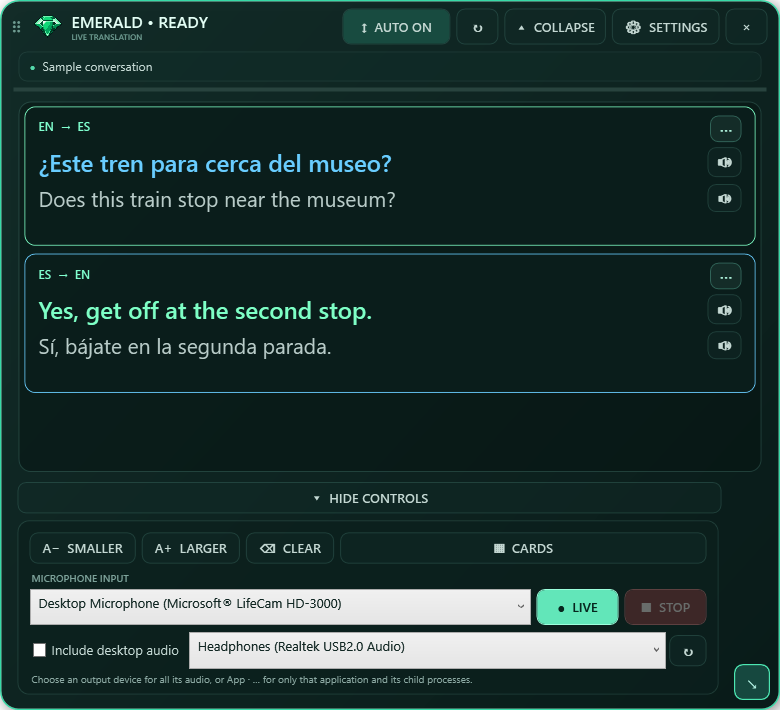
Review a caption
Use the three-dot menu on a finished card to copy text, get a pronunciation guide, or choose Understand for Explore context and meaning and Translation might be wrong. Use Re-Translate to try a fresh translation of the recognized text.
Adjust caption size with Smaller and Larger. Use Auto to follow the latest captions or pause following while you look back.
Set up read aloud
Click the speaker beside the original or translated line. In Settings → Read aloud, choose the output for manual playback. Under Auto Read Aloud on a specific audio device, each conversation language has its own automatic output and voice. Maya is the default, and Adrian is also available.
Automatic playback is off until you choose an output for a language. It can use your separate read-aloud allowance quickly.
Try Movie Mode beta
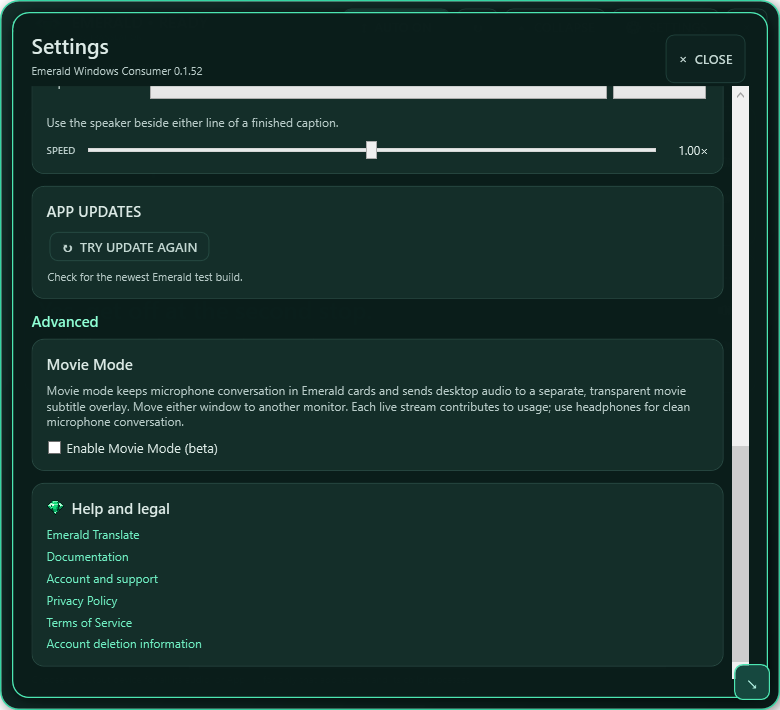
- Under Settings → Advanced → Movie Mode, select Enable Movie Mode (beta).
- In the main controls, select the Windows playback device carrying the movie. Choose an App · … entry to capture one app and its child processes.
- Click Movie Mode in the main window. Move the separate subtitle window over the player or to another monitor. Use the overlay controls to stop movie audio or close the overlay.
Movie Mode uses plan hours twice as fast when your microphone and Movie Mode are both active. Each stream counts separately, so 30 minutes with both running uses one translation hour. Movie Mode on its own uses one stream.
Wear headphones to keep speaker audio out of the microphone.
Manage your account
Open Settings to check your remaining translation and read-aloud allowances or refresh usage. Use the Emerald account website to manage your plan and contact support.
Manage your account